📥 Trigger Workflows or Drive Approvals, Email Account in Oracle AI Agent Studio Does Both
How Oracle AI Agent Studio turns emails into fully automated enterprise workflows

It’s not just a mailbox connection. It’s the bridge between your inbox and your enterprise workflows.
So What Is an Email Account in Oracle AI Agent Studio?
Once you configure an Email Account inside Oracle AI Agent Studio, you’re essentially telling the system: “Watch this inbox. When something arrives — act on it.”
And what it can act on covers two very different — but equally powerful — use cases.

Two Use Cases. One Email Account Feature
This is the part most people miss when they first encounter this feature. An Email Account in Oracle AI Agent Studio isn’t just for one thing. It supports two distinct workflow scenarios, and understanding the difference is key.
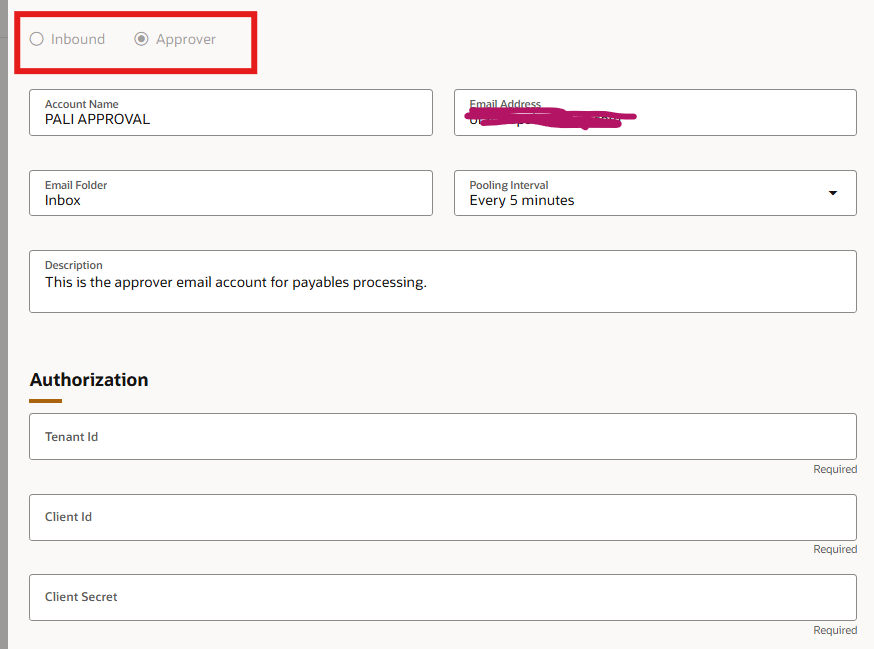
Use Case 1 — Inbound Account (Trigger Workflows Automatically)
This is for fully automated, no-human-needed processing.
You configure an email account as Inbound, and the AI agent monitors that mailbox at a set pooling interval — every 5, 15, or 30 minutes. The moment a new unread email arrives in the designated folder, the agent wakes up, reads the email body, parses any attachments, and kicks off the workflow automatically.
A real example: your payable team receives supplier invoice requests via email — usually a pdf with invoice details. Instead of someone manually logging into Oracle Fusion and creating record or using IDR, the agent does it the moment the email arrives. It can even sends a confirmation back to the original sender when it’s done.
No manual trigger. No batch job to babysit. Just email in, automation out.
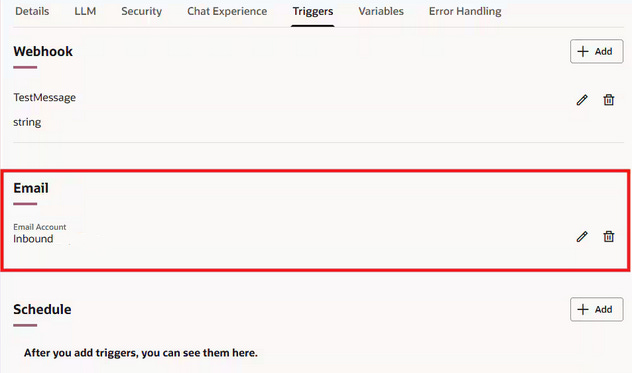
Use Case 2 — Approver Account (Human-in-the-Loop Workflows)
This one is for scenarios where a human decision is required before the workflow can proceed.
You configure an email account as an Approver, and assign it to a Human-in-the-Loop node inside your workflow agent. When the workflow reaches that node, it sends an email to the approver. They can approve or reject the request directly from their inbox — no need to log into any system.
Think of it as giving your approvers a frictionless way to participate in enterprise workflows without changing how they work. They just respond to an email, like they always have.
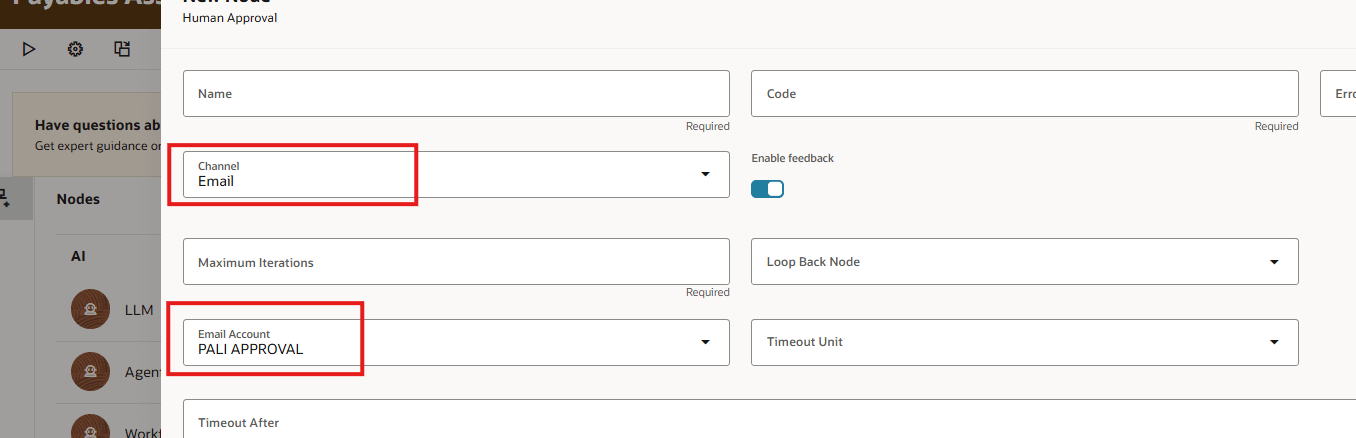
One important rule to remember: the same email account cannot be used for both Inbound and Approver configurations. They serve different purposes and must be set up separately.
How to Set It Up (The Short Version)
You don’t need to be a developer to configure this. Here’s the gist:
Step 1 — Prepare your mailbox. Whether you’re using Gmail or Microsoft, you need to register an application with your email provider and collect three credentials: a Tenant ID, Client ID, and Client Secret. For Google specifically, the Tenant ID maps to your Google Cloud Project ID — something that catches a lot of people off guard the first time.
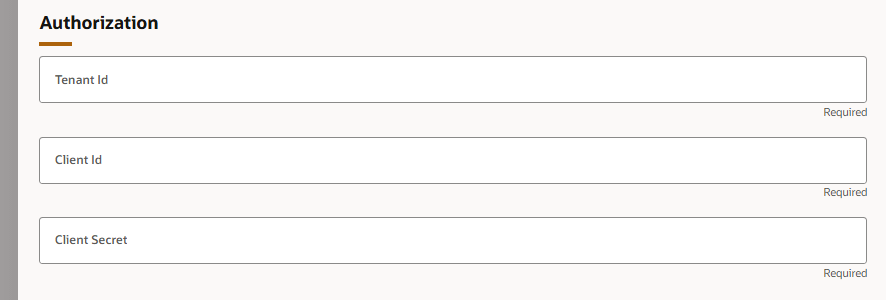
Step 2 — Connect the mailbox to Oracle AI Agent Studio. Inside the studio, navigate to Credentials → Email Accounts, add a new account, select your provider, choose whether it’s Inbound or Approver, paste in your credentials, and set your pooling interval. This is the secure bridge between your inbox and Oracle.
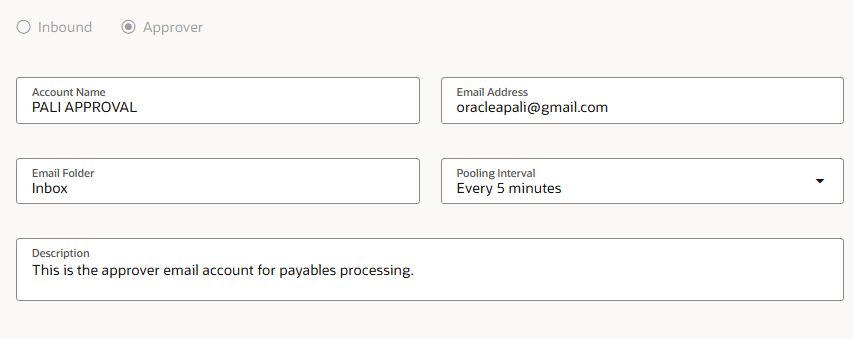
Step 3 — Build your workflow agent. Create a workflow agent and assign the email account — either as a trigger (for Inbound) or to a Human-in-the-Loop node (for Approver). Then define what the agent should do — parse data, call a business object, send a notification, handle errors.
Step 4 — Test, then publish. Always use debug mode first. For Inbound accounts, the email trigger only activates once the agent is in a Published state. Don’t skip this step.
Why This Matters Beyond Oracle
Even if you’re new to Oracle Fusion, the pattern here is worth paying attention to.
Email is still the most universal business communication channel. It’s how field teams submit requests. It’s how vendors send invoices. It’s how partners share data. Building automation that starts from an email — rather than requiring people to log into a portal or fill out a form — dramatically lowers the barrier to adoption.
The best automation is the kind people don’t have to change their behaviour for. They just send an email, like they always have. The system does the rest.
Key Things to Keep in Mind
A few practical notes before you get started:
The same email account cannot be used for both Inbound and Approver configurations — always set them up separately
Don’t assign the same Inbound email account as a trigger to multiple workflow agents — it leads to unpredictable processing
The agent processes records using the Fusion role security of the user who created the Email Account — so permissions matter
Once an email is read by the agent, it’s marked as “Read” so it won’t be processed twice
Always test in debug mode before publishing — for Inbound accounts, you can simulate the trigger using a web-hook test message
Final Thought
Your shared inbox has been a passive communication tool for too long.
With Oracle AI Agent Studio’s Email Account feature, it becomes an active automation gateway — triggering workflows, routing approvals, processing attachments, and responding to senders, all without any manual steps in between. Whether it’s supplier onboarding, invoice processing, data validation, or multi-step approval workflows — if it starts with an email, Oracle AI Agent Studio can automate it end to end.
The setup is simpler than you’d expect. The impact is bigger than you’d think.
Want to see this configured from scratch? I’ve put together a step-by-step video walkthrough covering Gmail OAuth setup, the full Email Account configuration in Oracle AI Agent Studio, and a live demo inside Oracle Fusion. Check it out on my YouTube channel using the link below.
YouTube Video: Email Account Config Vedio
Found this useful? Subscribe for more deep dives into Oracle Fusion, AI Agent Studio, and enterprise automation.